iPhone Wallpaper Dimensions: Full Size Chart for Every Model (2026)
iPhone wallpaper dimensions decide how sharp and how well fitted a background image looks on your screen. When a wallpaper matches your phone’s native screen resolution, icons stay crisp, text stays readable, and nothing gets cropped at the edges.
This guide lists the correct iPhone wallpaper resolution for every current and recent model, then shows how to resize and set an image so it fits perfectly on both the lock screen and the home screen.
Quick Answer
Most iPhones use a 19.5:9 aspect ratio. Standard models like the iPhone 16 and iPhone 15 need 1179 × 2556 pixels, Pro models need 1206 × 2622 or 1290 × 2796, and the largest Pro Max screens need 1320 × 2868. Use the exact resolution for your model from the chart below to avoid blur or cropping.
What Is the Ideal iPhone Wallpaper Size?
The ideal iPhone wallpaper size matches your phone’s native display resolution exactly, without stretching or compressing the image. When the wallpaper fits the screen correctly, icons remain sharp, text stays readable, and there is no unwanted cropping around the edges. Knowing your iPhone screen resolution, wallpaper pixel size, and mobile wallpaper dimensions helps you pick images that fill the display naturally instead of guessing.
Modern iPhones use several display sizes and resolutions, so a single image rarely fits every device well. A high-quality portrait wallpaper with the correct wallpaper aspect ratio looks best on both OLED and LCD panels. A wallpaper sized to your exact model behaves like a tailored fit rather than an approximation, and that difference is visible the moment you unlock the phone.
iPhone Wallpaper Sizes by Model (Complete Chart)
Apple has released dozens of iPhone models, each with its own display size and resolution. Downloading a random image from the internet will not always give the best result. Using the correct best wallpaper size for iPhone keeps images detailed and prevents blurry backgrounds.
The table below works as a wallpaper sizing chart and quick reference for picking the right dimensions before building an image with an iPhone wallpaper creator or editing one from an iPhone wallpaper template.
| iPhone Model | Recommended Wallpaper Resolution |
|---|---|
| iPhone 17 | 1290 × 2796 |
| iPhone 17 Pro | 1290 × 2796 |
| iPhone 17 Pro Max | 1320 × 2868 |
| iPhone 16 | 1179 × 2556 |
| iPhone 16 Pro | 1206 × 2622 |
| iPhone 16 Pro Max | 1320 × 2868 |
| iPhone 15 | 1179 × 2556 |
| iPhone 15 Pro Max | 1290 × 2796 |
| iPhone 14 | 1170 × 2532 |
| iPhone 13 | 1170 × 2532 |
| iPhone 12 | 1170 × 2532 |
| iPhone 11 | 828 × 1792 |
| iPhone X | 1125 × 2436 |
Figures above are commonly reported manufacturer resolutions carried forward from the original article; they were not independently re-measured for this rewrite.
iPhone 17 Series
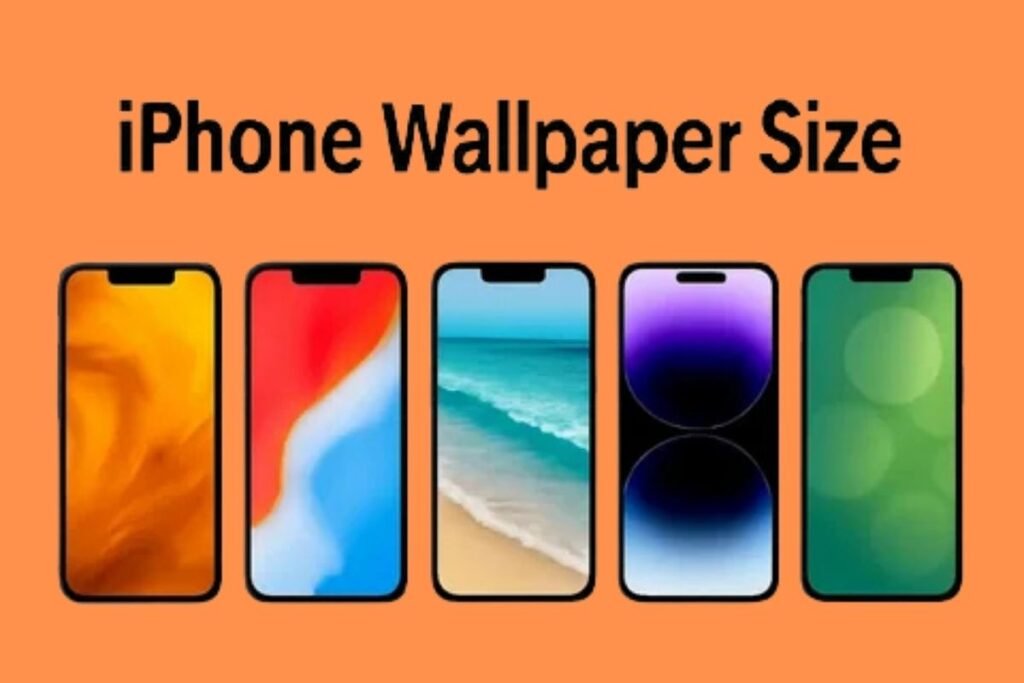
Owners of Apple’s newest devices need the correct iPhone 17 wallpaper size, iPhone 17 Pro wallpaper size, and iPhone 17 Pro Max wallpaper dimensions before downloading images. These displays reward ultra-high-resolution artwork that preserves fine detail, not generic downloads.
The iPhone 17 family renders vibrant colors and deep contrast, so HD iPhone wallpapers already look strong while 4K iPhone wallpapers push clarity even further. Matching the correct phone background image resolution minimizes cropping and produces a seamless, edge-to-edge result.
At 6.9 inches, the iPhone 17 Pro Max display sits close to the size range covered in our guide to things that are 7 inches long, a useful real-world reference if you want to picture the screen size before buying a case or a matching wallpaper.
iPhone 16 Series
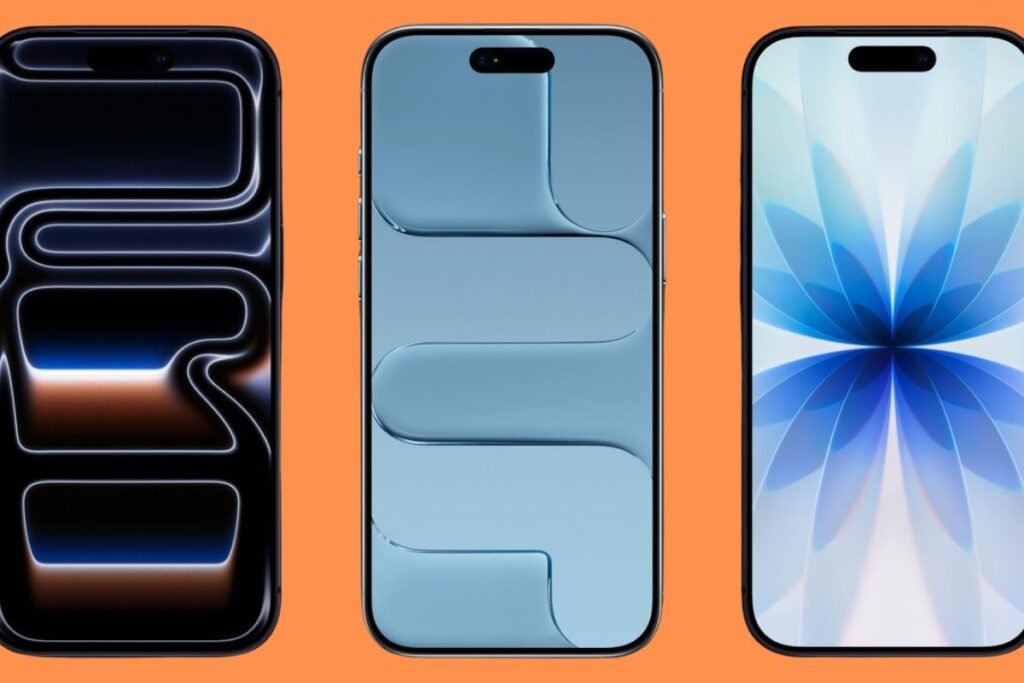
Getting the iPhone 16 wallpaper size right improves image quality and prevents distortion on the standard model. Understanding the iPhone 16 Pro Max wallpaper resolution keeps large wallpapers crisp even on Apple’s biggest screen in that generation.

Because the iPhone 16 lineup uses OLED panels, darker-themed images with balanced contrast tend to look best and can be gentler on battery life. The standard iPhone 16 has a 6.1-inch display, and for a quick sense of scale, our page on things that are 6 inches long puts that figure into everyday context.
iPhone 15 Series
iPhone 15 wallpaper dimensions shifted slightly from earlier generations as Apple refined its display measurements. Downloading wallpapers built for these exact resolutions helps preserve edge to edge sharpness without extra zooming.

Anyone chasing the correct iPhone 15 Pro Max wallpaper size should use images that match native pixel dimensions whenever possible. That approach keeps detail intact and avoids the scaling artifacts that often appear after automatic resizing in editing apps or online tools.
iPhone 14 Series
The iPhone 14 wallpaper size differs between standard and Pro models because of display changes and the Dynamic Island. Choosing images built for these dimensions keeps important subjects visible instead of hidden behind interface elements.

Anyone who switches often between lock screen and home screen benefits from a carefully composed image. Pairing high resolution artwork with an accurate wallpaper resize tool beats relying entirely on automatic cropping.
iPhone 13 Series
Correct iPhone 13 wallpaper dimensions let wallpapers look natural across mini, standard, Pro, and Pro Max devices. Since display sizes vary across the range, an image should match the intended model rather than use a single generic size.

Designers who prepare assets professionally often export a separate version per screen size. That habit improves compatibility and keeps a Retina display wallpaper looking sharp on every version of the phone.
iPhone 12 Series
Finding the right iPhone 12 wallpaper size prevents stretching and keeps proportions accurate. Many wallpapers fit reasonably well even off spec, but exact dimensions still produce the cleanest result.

You can also build a custom design using templates set to the official resolution. Many people use Canva wallpaper size presets to create attractive backgrounds while keeping the recommended pixel ratio from the start.
iPhone 11 Series
Getting the iPhone 11 wallpaper resolution right lets images display sharply without unnecessary enlargement. Because the standard model uses a different display than its Pro counterparts from the same generation, an optimized wallpaper produces a noticeably cleaner result.
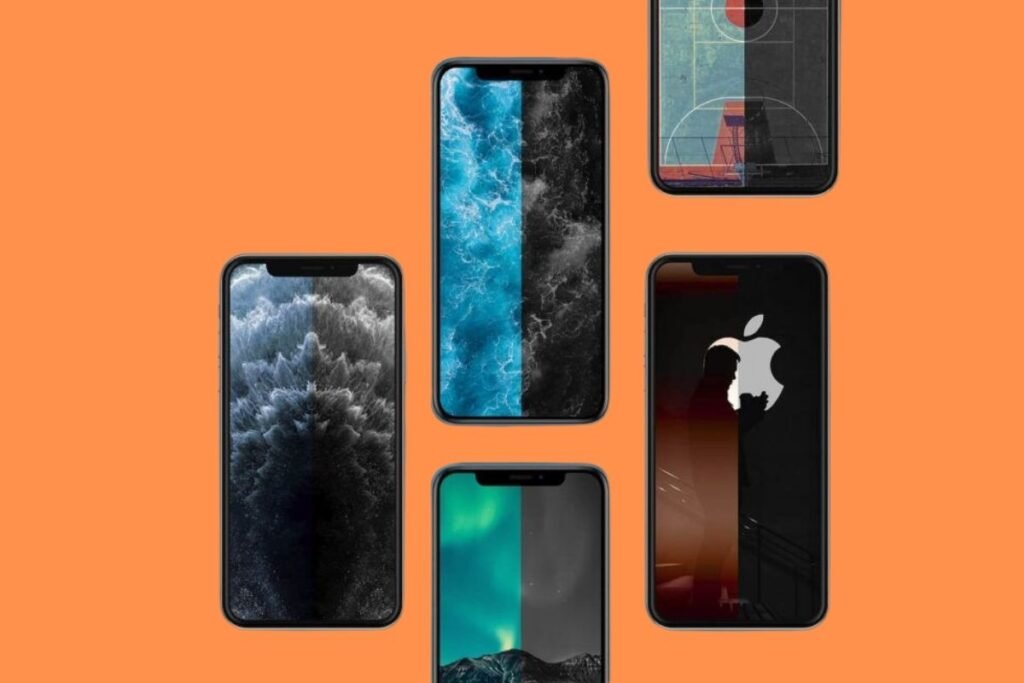
Creators preparing wallpapers for several devices at once should check export settings before publishing. Watching the wallpaper pixel size and image compression keeps sharpness high and artifacts low.
iPhone X, XR, XS & Older Models
Owners of older devices still get an impressive display when they use the correct iPhone X wallpaper size, iPhone XR wallpaper dimensions, and iPhone XS Max wallpaper resolution. Matching the original specification keeps a wallpaper balanced and visually appealing despite the hardware’s age.

Many classic iPhones still look good with a carefully optimized background. Whether you build a graphic manually or use an iPhone wallpaper creator, matching the correct iPhone wallpaper dimensions gives the image a professional finish.
iPhone Wallpaper Resolution Table (Pixels, Aspect Ratio & Screen Size)
Comparing every model in one place makes choosing the right wallpaper much faster. This iPhone wallpaper resolution guide helps you match the correct image to your device and avoid stretching or blur. Watching iPhone wallpaper dimensions, wallpaper aspect ratio, and iPhone display size together produces the cleanest, most professional result.
The table below is a quick reference for the correct Apple wallpaper size without digging through multiple sources. Use it when building a custom iPhone wallpaper or adjusting a downloaded image before installing it.
The same 19.5:9 aspect ratio logic applies to video content too; if you are cropping footage or stills for a background, our breakdown of YouTube video dimensions explains how aspect ratio and resolution interact on a different type of screen.
| iPhone Model | Screen Size | Resolution (Pixels) | Aspect Ratio |
|---|---|---|---|
| iPhone 17 | 6.3 inch | 1290 × 2796 | 19.5:9 |
| iPhone 17 Pro | 6.3 inch | 1290 × 2796 | 19.5:9 |
| iPhone 17 Pro Max | 6.9 inch | 1320 × 2868 | 19.5:9 |
| iPhone 16 | 6.1 inch | 1179 × 2556 | 19.5:9 |
| iPhone 16 Pro | 6.3 inch | 1206 × 2622 | 19.5:9 |
| iPhone 16 Pro Max | 6.9 inch | 1320 × 2868 | 19.5:9 |
| iPhone 15 | 6.1 inch | 1179 × 2556 | 19.5:9 |
| iPhone 15 Pro Max | 6.7 inch | 1290 × 2796 | 19.5:9 |
| iPhone 14 | 6.1 inch | 1170 × 2532 | 19.5:9 |
| iPhone 13 | 6.1 inch | 1170 × 2532 | 19.5:9 |
| iPhone 12 | 6.1 inch | 1170 × 2532 | 19.5:9 |
| iPhone 11 | 6.1 inch | 828 × 1792 | 19.5:9 |
| iPhone X | 5.8 inch | 1125 × 2436 | 19.5:9 |
For the official, continuously updated specification sheet across the current lineup, see Apple’s own iPhone comparison page.
How to Find Your iPhone’s Correct Wallpaper Size
Finding the right wallpaper starts with identifying your exact device. Two phones that look nearly identical can still use different display resolutions. Checking your model first helps you download the correct iPhone background size and avoids extra editing later.
Compare your phone’s display against a trusted wallpaper sizing chart before creating or downloading an image. This habit saves time and keeps a personalized wallpaper sharp on both the lock screen and the home screen.
Check Your Model
Open Settings, tap General, then About, to see your device name. Once you know the model, finding the correct iPhone wallpaper size is straightforward because Apple assigns a different resolution to each product generation.
Check Screen Resolution
After confirming your model, verify the native display specification. Matching the wallpaper to the true iPhone screen resolution preserves image quality and stops unwanted stretching or compression during installation.
Verify Display Zoom Settings
Display Zoom can enlarge interface elements and shift wallpaper positioning. If a background looks cropped, check this setting before touching the image, since many fit issues come from zoom preferences rather than the wrong file.
How to Resize a Wallpaper for iPhone
Sometimes the perfect picture does not match your display. In that case, resizing the image correctly is the better fix than forcing a poor crop. A proper wallpaper resize tool keeps clarity intact while preserving the original composition.
A carefully resized image beats aggressive cropping every time. Many designers start with a file larger than necessary, then scale it down with dedicated software or an online editor until it matches the required mobile wallpaper dimensions.
The same principle applies to print design. Our guide to magazine dimensions shows how designers plan a canvas around a fixed page ratio, a process close to setting up an iPhone wallpaper canvas from the start.
Using Photoshop
Photoshop suits users who want precise control over resolution and layers. Set the canvas to the exact pixel dimensions from the chart above, then export at full quality to avoid compression artifacts on the finished wallpaper.
Using Free Online Tools
Several browser based editors resize images without any software install. These tools often include automatic cropping and custom dimension fields, which makes them useful for quickly preparing a high quality phone background image.
Using the Photos App
The built in Photos app offers simple editing tools for everyday use. You can crop, adjust alignment, and save a finished portrait wallpaper before setting it as your background, although a dedicated editor still gives more precision.
How to Set a Wallpaper That Fits Perfectly on iPhone
Applying the correct wallpaper matters as much as downloading the right image. Even with the correct iPhone wallpaper dimensions, poor placement can make a picture look zoomed or misaligned. A few extra seconds spent positioning the image gives a custom iPhone wallpaper a professionally designed look.
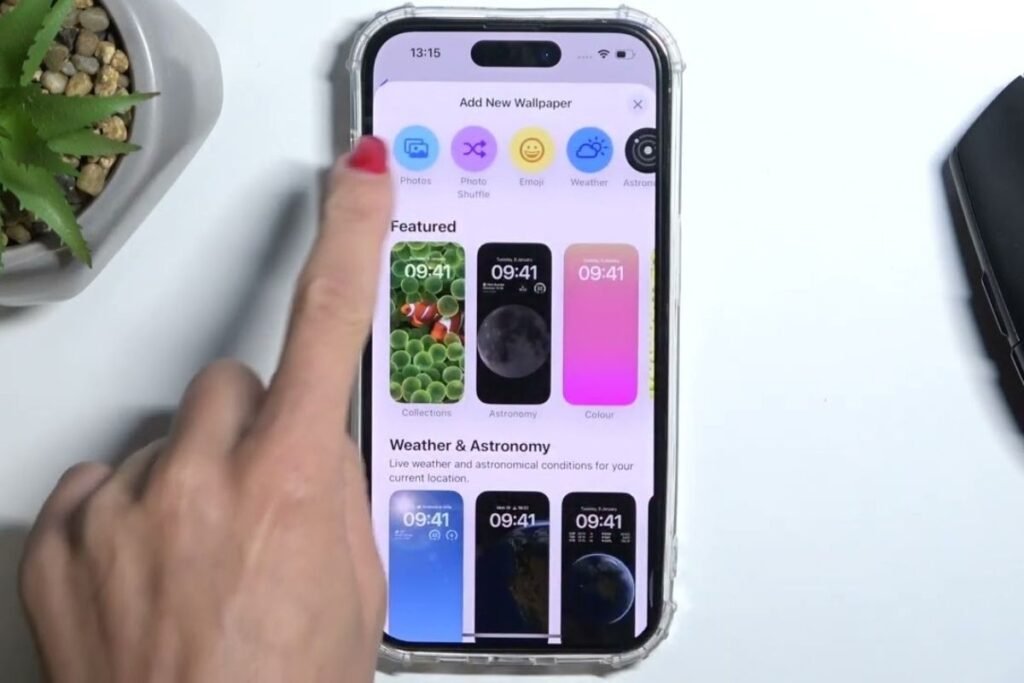
Apple gives users several tools to preview a wallpaper before saving it. You can move the picture, adjust the crop, and check how icons sit over the background. Matching the correct best wallpaper size for iPhone with the right settings also protects image quality and prevents unnecessary scaling.
Lock Screen
When setting a lock screen wallpaper, choose an image that keeps the clock and widgets easy to read. Avoid placing important subjects in the upper center, since notifications and interface elements can partially cover them there.
Home Screen
Your home screen wallpaper needs enough contrast for app icons and labels to stay legible. Soft gradients and clean backgrounds often improve visibility while still letting a favorite photo or artwork stand out.
Avoid Zoom & Cropping Issues
If a wallpaper looks larger than expected, disable Perspective Zoom and reposition the image before saving. This small adjustment usually fixes unwanted cropping and lets the chosen wallpaper aspect ratio display correctly across the whole screen.
Best Practices for Choosing High-Quality iPhone Wallpapers
Wallpaper quality affects how the phone looks every single time you unlock it. Choosing images with enough resolution prevents visible blur and keeps fine detail intact. Matching a wallpaper to the correct iPhone display size and wallpaper pixel size creates a cleaner, more premium-looking screen.
Designers rarely rely on low resolution downloads because enlarging them reduces sharpness. They instead prefer optimized HD iPhone wallpapers or 4K iPhone wallpapers that hold up well after resizing. Pairing correct dimensions with thoughtful composition produces a background that feels balanced rather than accidental.
Use High-Resolution Images
Choose images with a high pixel count whenever possible. Larger source files preserve detail during editing and produce a sharper Retina display wallpaper on advanced screens.
Match Aspect Ratio
Keeping the correct wallpaper aspect ratio prevents stretching and distortion. An image that already matches your screen shape needs less cropping and looks more accurate once installed.
Avoid Pixelation
Pixelation usually shows up when a small image gets enlarged past its original size. Starting from a high quality source and following a wallpaper fit guide preserves fine texture and smooth edges.
Optimize for OLED Displays
OLED screens render deep blacks and vibrant color efficiently. Wallpapers with darker tones can look striking on these panels while asking slightly less of the battery during everyday use, according to general OLED display principles.
Where to Download Free iPhone Wallpapers
Finding a good wallpaper is easier now that several trusted sites offer free, high resolution images. Many libraries include landscapes, city views, minimalist art, and abstract designs suited to nearly every iPhone wallpaper size without a paid subscription.
Before downloading, check the resolution and the license. Starting with a quality file makes resizing simpler and helps preserve the correct Apple wallpaper size, iPhone background size, and phone background image quality all the way through editing.
Unsplash
Unsplash hosts thousands of professional photographs from creators worldwide. Many images are available at very high resolution, which makes them a strong starting point for a personalized wallpaper.
Pexels
Pexels offers an extensive library of free photography and digital artwork built for modern screens. Users often find backgrounds that need only minor adjustment before becoming a polished portrait wallpaper.
Pixabay
Pixabay includes royalty free illustrations, vectors, and photographs suited to personal projects. The platform works well when you want artistic graphics that can become a unique custom iPhone wallpaper.
Apple Wallpapers
Apple also ships official wallpapers built specifically for its own devices. These images already match supported display specifications, which makes them an easy, guaranteed compatible choice for any current model.
Common iPhone Wallpaper Problems and Fixes
Even a perfect image can run into display issues after installation. Most problems happen because the file does not match the correct iPhone wallpaper size, or because automatic settings alter the image during setup. Understanding the correct iPhone wallpaper resolution and wallpaper dimensions by model clears up these frustrations before they start.
Nearly every wallpaper problem has a simple fix. Whether an image looks blurry, appears zoomed in, or gets cropped unexpectedly, a small adjustment to the file or the phone settings usually restores the intended look. Following a reliable iPhone wallpaper resolution guide saves time and produces a cleaner result.
Wallpaper Looks Blurry
A blurry wallpaper usually means the source image resolution is too low for the device. Replace it with a file that matches your iPhone wallpaper dimensions and avoid enlarging a small picture past its native size.
Wallpaper Is Zoomed In
Perspective Zoom or incorrect scaling often makes a wallpaper look larger than expected. Turning off automatic zoom and repositioning the image usually restores the correct fit without touching the original photo.
Wallpaper Gets Cropped
Cropping happens when the image ratio does not match the display ratio. Preparing the picture with the correct wallpaper aspect ratio, or editing it before installation, preserves important detail near the edges.
Live Wallpaper Not Working
Some Live Wallpapers need compatible hardware and software versions. If the animation will not play, confirm the device supports the feature and check that motion settings have not disabled interactive wallpapers.
Gift card artwork follows the same size discipline in a different context; see our guide to gift card size for how fixed dimensions keep a small design looking consistent everywhere it appears.
Conclusion
Choosing the correct iPhone wallpaper size is one of the easiest ways to improve how a device looks and feels. A properly sized image looks sharper, fits naturally, and gives a polished experience every time you unlock the phone. As Apple keeps releasing new devices, display specifications will keep evolving alongside them.
Keeping track of the latest iPhone wallpaper dimensions, choosing the best wallpaper size for iPhone, and using accurate editing tools will keep backgrounds crisp across every generation you own.
FAQs
What Size Fits an iPhone Wallpaper?
The ideal iPhone wallpaper size depends on the model. Use an image that matches your device’s screen resolution and aspect ratio from the chart above for the cleanest fit.
What Ratio is iPhone 16 Wallpaper?
The iPhone 16 wallpaper ratio is approximately 19.5:9, matching the phone’s display shape and giving full screen coverage.
Should I take iPhone Pics in 4:3 or 16:9?
For general photos, 4:3 usually captures more of the scene. Use 16:9 when shooting content mainly intended for wallpapers, video, or widescreen viewing.
What is the iPhone 17 Wallpaper Ratio?
The iPhone 17 series uses an approximate 19.5:9 display ratio, which suits portrait wallpapers designed for modern iPhone screens.
Can I Use the Same Wallpaper on iPhone and iPad?
Not without adjustment. iPads use a different aspect ratio than iPhones, so a wallpaper sized for an iPhone will usually need to be recropped, or replaced with an image sized for the iPad’s own display, to avoid stretching.
Why Does My Wallpaper Look Different on the Lock Screen Than the Home Screen?
iOS applies slightly different scaling and depth effects between the two screens. A wallpaper that looks correctly sized on the home screen can appear zoomed on the lock screen if Perspective Zoom or photo shuffle is active.
How do I check my iPhone model before choosing a wallpaper size?
Open Settings, tap General, then About. The model name shown there tells you exactly which resolution row to use in the chart above.